How to Reduce Image Size to 100KB on Any Device
Many forms and job portals reject photos over 100KB. This guide shows you how to reduce image size to 100KB with our free Compress Image tool. It works in your browser, and your photos stay on your own device.
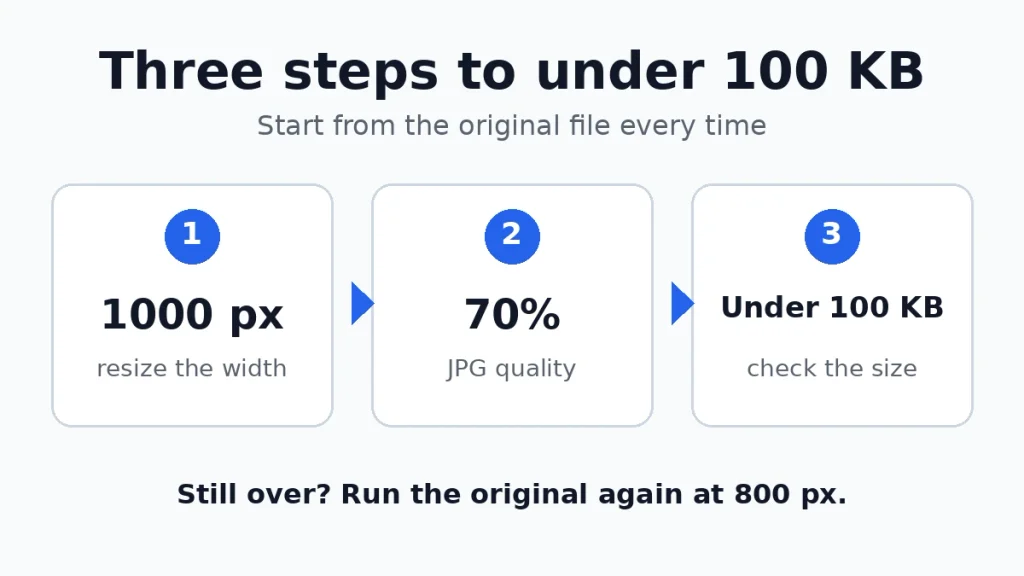
First shrink the width to about 1000 pixels. Then save the photo as JPG at about 70% quality. Check the size after each run. If it is still over, shrink the width to 800 pixels and run it once more from the original file. Our guide to how to compress an image explains the same tool in more detail.
Check your form’s rules before you start. Some forms also ask for exact pixel dimensions or a fixed format. If yours does, resize to that exact size first, then adjust the quality.
Pick the Method That Fits
| What you have | What to do | Install anything? |
|---|---|---|
| Any photo, any device | Compress the image tool in the browser. | No |
| A phone photo, 3000 pixels or wider | Resize it first, then compress it. | No |
| One file on Windows | Resize in Paint, then use the browser tool. | No |
| One file on a Mac | Export from Preview with the quality slider | No |
| An iPhone or Android photo | Compress Image tool in Safari or Chrome | No |
| A PNG file | Turn it into JPG first, then compress. | No |
What Controls the Size of an Image?
Three things set how big an image file is. First, its dimensions: a photo 3000 pixels wide holds far more pixels than the same photo at 1000 pixels wide. Second, its quality setting: JPG throws away detail to save space, and a lower number means a smaller file. Third, its format: PNG keeps every pixel exactly, so photos stay large as PNG, while JPG and WebP store photos in far fewer bytes.
For a 100KB target, dimensions do most of the work. Lowering quality on a huge photo cannot bring it near the limit, because millions of pixels still have to be stored. Shrink the picture first, then tune the quality. That order is what our test below shows.
Our Test: What Actually Gets a Photo Under 100KB
We tested a 3000 by 2000 photo with a standard image library. The file as downloaded was 950.5 KB. Lowering quality at full size could not get it anywhere near the limit: quality 75 gave 1,002.7 KB, and even quality 60 still left 891.6 KB. Quality 90 gave 1,443.3 KB, which is bigger than the original, because saving an already compressed photo at a high quality adds bytes. Quality alone cannot fix a photo that is simply too big.
| Step | What changed? | Size |
|---|---|---|
| Original, 3000 pixels wide | Nothing yet | 950.5 KB |
| Resize to 1920 pixels, quality 75. | Smaller dimensions | 445.6 KB |
| Resize to 1200 pixels, quality 75. | Smaller dimensions | 181.7 KB |
| Resize to 1000 pixels, quality 70. | Smaller dimensions, lower quality | 117.0 KB |
| Resize to 800 pixels, quality 70. | Smaller dimensions, quality kept at 70 | 76.7 KB |
The last step is the one to copy. At 800 pixels wide and quality 70, the photo came out at 76.7 KB, under the limit, with quality still at 70. The other way also works: 1000 pixels wide at quality 60 came out at 97.6 KB, but quality 60 shows more damage than quality 70. So shrink the width before you drop the quality below 70.
That is why this guide starts at 1000 pixels and 70% and keeps 800 pixels as the fallback for big phone photos. Your numbers will differ, but the pattern stays the same: dimensions first, quality second.
How to Reduce Image Size to 100KB in Your Browser
Start here, whatever device you use. One run handles a single photo or a whole set.
- Add your photos. Open the Compress Image tool and drag the photos in, or choose them from your files. Several files can go in together.
- Set the width and the format. Type 1000 in the max width/height box. For a big phone photo, you may need 800. Choose JPG as the output. Most forms ask for JPG, so read your form’s rules before you pick WebP.
- Set the quality. The slider starts at 75%. Move it to 70%. The tool has no box for a target size, so check the result after each run and adjust.
- Compress and check. Press Compress Images and read the size it shows. Still over 100KB? Run the original again at 800 pixels wide. A batch downloads as one ZIP file or as individual files.
Small ID-style photos pass easily. In our test, a 600-pixel-wide photo came out at 44.6 KB at quality 70. When the photo starts small, a single pass is usually enough.
Resize First When the Photo Is Huge
A phone photo is often 3000 or 4000 pixels wide, and that is why it starts at several megabytes. The Resize Image tool cuts it down before you compress. Enter a width of 1000 pixels, or scale by percent, and keep the proportions locked so nothing gets stretched. Then run the result through the Compress Image tool and lower the quality until it falls under the limit.
Do not enlarge a small photo to reach a size. Scaling up cannot invent detail; it only makes the file bigger and softer. Always start from the original file, never from a copy you already compressed.
How to Reduce Image Size to 100KB on Windows
Paint, to shrink the dimensions. Paint is already on every Windows PC. Open the photo in Paint, pick Resize, and set the width to 1000 pixels while keeping the aspect ratio. Save it. Paint has no quality control, so this step alone may leave the file over 100KB.
Then the browser tool to hit the target. Take the resized file to the Compress Image tool above, choose JPG and quality 70, and compress it. Check the size. Still over? Drop the width to 800 and run the original again.
How to Reduce Image Size to 100KB on Mac
Preview, for one file. Double-click the photo to open it in Preview. Go to File, then Export, and pick JPEG as the format. Drag the quality slider down toward 70% and watch the size shown below it. Still over 100KB? Start over from the original. Open Tools, pick Adjust Size, set the width to 1000 or 800 pixels, and export again.
Quick Actions, for a whole folder. Finder can shrink a whole folder at once. Select the photos, right-click, open Quick Actions, choose Convert Image, and pick JPEG. You need macOS Monterey or newer for this. Then take the results to the browser tool to reach the exact limit.
How to Reduce Image Size to 100KB on iPhone and Android
No phone has a built-in setting for an exact KB size. The browser tool above is the way to hit the limit. Open it in Safari on an iPhone or in Chrome on Android. Pick the photo, set the width to 1000 and the quality to 70, and download the result. Both phones work the same way here.
Check the size before you send the file to the form. On an iPhone, open Photos, tap the photo, and swipe up to see its size. On Android, open Files and look at the file details. Still over? Run the original again at 800 pixels wide.
PNG Files Need One Extra Step
A PNG photo is large by nature, because PNG keeps every pixel exactly. In our test, a 1200-pixel-wide photo was 1,655.4 KB as PNG and 164.2 KB as JPG at quality 70. So turn the PNG into a JPG first with the Convert Image tool, then compress the JPG. Our guide on how to convert PNG to JPG shows the steps for every device.
One warning: a flat graphic behaves the other way around. In our test, a simple logo was 5.6 KB as PNG and 22.6 KB as JPG at quality 70. Photos belong in JPG. Logos and icons stay in PNG. One more thing: a JPG cannot keep clear pixels, so the clear parts of a PNG usually turn white in the JPG. Some tools fill them with black, so check the result.
After Reducing: Check the File
Open the finished file before you send it anywhere. Look at it at full size and check the small text and the edges. Then check the size the form will see. Aim for about 95KB rather than exactly 99KB. Some portals count 1 KB as 1,000 bytes. Others count 1,024. So a file shown as 99 KB can read as over 100 KB on a portal that counts by 1,000. A little margin keeps you safe.
If you want a second opinion on the result, Squoosh shows a live size preview as you move the quality slider, and TinyPNG is another free compressor.
Hold on to the original until the reduced file has been accepted. If the form rejects it, you can run the original again with different settings instead of starting from a copy that already lost detail. If your limit is 20KB instead of 100KB, our guide on how to resize an image to 20KB without losing quality shows the same steps pushed further.
Mistakes to Avoid When You Reduce
1. Compressing the compressed copy. Each JPG save drops a little more detail, and the damage adds up. If the first run comes out over 100KB, run the original again with a smaller width. Never feed the compressed file back into the tool.
2. Dropping the quality below 70 first. In our test, quality 60 at full size still left 891.6 KB, and a lower quality only adds visible damage. Shrink the width to 1000 or 800 pixels first, and keep the quality at 70 or above. Only lower the quality when the width is already small.
3. Trusting 99KB. A file that reads as 99 KB on your device can read as over 100 KB on the portal. Aim for about 95KB or under, and you will pass on either way of counting.
4. Sending WebP where only JPG is accepted. WebP makes the smallest files, but many forms accept JPG only. Read the form’s rules first, and pick JPG when the form asks for it.
Frequently Asked Questions
Can I reduce image size to 100KB without losing quality?
Not exactly. Every JPG save drops a little detail, so the copy never matches the original pixel for pixel. At quality 70, with the width at 800 to 1000 pixels, a photo usually looks fine at normal size. Start from the original, reduce it once, and keep the quality at 70 or above.
Why is my photo still over 100KB after compressing?
The dimensions are usually the cause. A 3000-pixel-wide photo stays large even at low quality. In our test, quality 60 at full size still left 891.6 KB. Set the width to 1000 or 800 pixels and run it again from the original.
Does resizing alone get a photo under 100KB?
Sometimes, but not always. In our test, resizing to 1200 pixels at quality 75 gave 181.7 KB, still over the limit. Resizing plus quality 70 at 800 pixels gave 76.7 KB. Use both levers together: smaller dimensions first, then quality.
Can I reduce a photo to 100KB on an iPhone?
Yes. Open the Compress Image tool in Safari, pick the photo, set the width to 1000 and the quality to 70, and download the result. If it is still over, run the original again at 800 pixels wide. There is no built-in iPhone setting for an exact KB size, so the browser tool is how you reach the limit.
Will a PNG with a transparent background still work?
A JPG cannot store clear pixels at all, so those parts usually come out white. If the picture must stay clear on any background, keep it as PNG. Most forms ask for JPG, so check the form’s rules before you convert.
Is 100KB the same as 100,000 bytes?
Not always. Some systems count 1 KB as 1,000 bytes, so 100KB means 100,000 bytes. Others count 1 KB as 1,024 bytes, so 100KB means 102,400 bytes. Aim for about 95KB and the file passes under either way of counting.
Final Thoughts
For a 100KB limit, shrink the picture first and tune the quality second. A 3000 pixel photo at quality 60 is still nearly 900KB, while the same photo at 800 pixels and quality 70 is under 77KB. Set the width to 1000, pick JPG, start at quality 70, and run it again from the original at 800 pixels if it is still over. Aim for about 95KB, keep the original until the form accepts the file, and check the form’s rules for the format and size it wants.
Once the file fits, the free tools on aimode.pro can resize it, squeeze it smaller, or change it to another format.
Sources: Squoosh | TinyPNG. All links checked live in November 2026.
Free tools for this
Everything runs in your browser. Your files never leave your device.