How to Convert PNG to JPG on Windows, Mac, and iPhone
A PNG that needs to become a JPG is a two-minute job with the tool already on this site. Our free Convert Image tool takes PNG files, turns them into JPG, and runs entirely in your browser, so nothing is uploaded. This guide shows you how to convert PNG to JPG on any device, the free ways on Windows and Mac, and the one case where converting makes your file bigger instead of smaller. Our guide to converting image formats covers the wider comparison of JPG, PNG, and WebP.
Pick the Method That Fits
| Your situation | Best method | Extra needed? |
|---|---|---|
| Any device, one photo | Convert Image tool in the browser | No |
| Many photos at once | Convert the image tool and add several files. | No |
| Windows, one file | Paint Save as JPEG | No |
| Mac, one file | Preview export to JPEG | No |
| Mac, a whole folder | Finder Quick Actions | macOS Monterey or later |
| iPhone screenshot | Convert Image tool in Safari | No |
PNG vs JPG: What Changes When You Convert
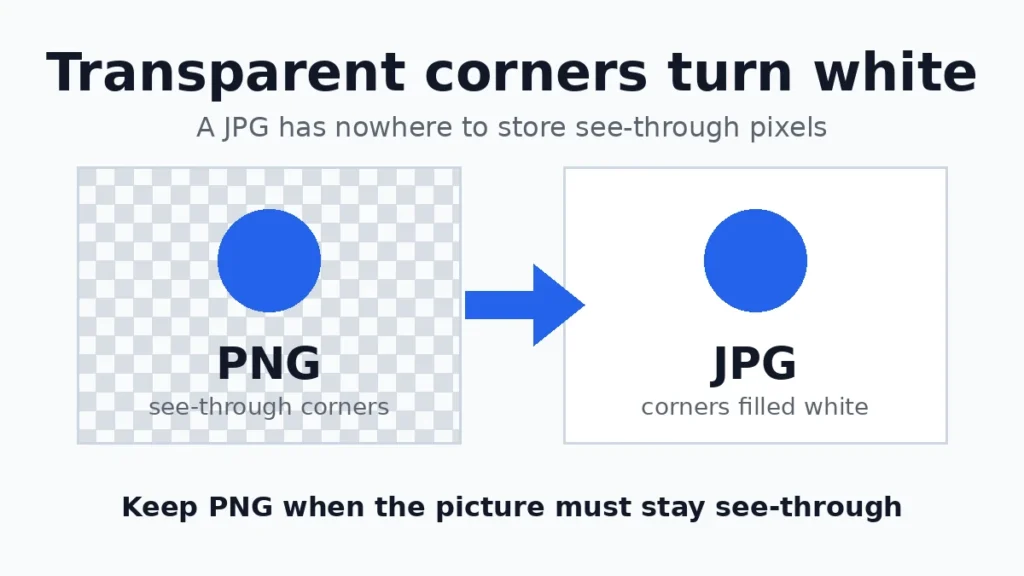
PNG and JPG store pictures in different ways. PNG is lossless, which means it keeps every pixel exactly as it was. JPG is lossy, which means it throws away detail your eye is least likely to miss, and that is how it makes files smaller. The trade has two costs: a little quality and transparency. A JPG cannot hold see-through pixels at all.
Whether converting helps depends on the picture. We tested two 1200×800 images with a standard image library. A real photo and a flat graphic behaved in opposite ways.
| Image | PNG | JPG quality 100 | JPG quality 90 | JPG quality 80 |
|---|---|---|---|---|
| Test photo | 350.2 KB | 156.2 KB | 58.7 KB | 46.0 KB |
| Flat graphic (logo, few colors) | 17.6 KB | 78.3 KB | 45.7 KB | 37.8 KB |
The photo shrank by 83% at quality 90, from 350.2 KB to 58.7 KB. The flat graphic did the opposite: its PNG was 17.6 KB, and the JPG at quality 90 was 45.7 KB, more than two and a half times bigger. PNG compresses flat color and sharp edges very well, and JPG spends its bytes redrawing edges it cannot keep sharp. So convert photos to JPG, and leave logos, icons, and simple graphics as PNG. Exact sizes depend on the picture, but the pattern holds.
Skip quality 100 for web use. On our test photo, quality 100 produced 156.2 KB. Quality 90 gave 58.7 KB, close to a third of the size, with no visible difference from the normal size in our test. For most photos, 90 is the setting to use. Keep screenshots with small text at 90 or higher, because their edges show compression first.
How to Convert PNG to JPG in Your Browser
This is the method that works on every device, and it is the only one you need for more than one file.
- Add your PNG files. Open the Convert Image tool and drop the PNGs onto the page, or pick them from your files. You can add more than one file at a time.
- Pick JPG and the quality. Set the output to JPG. The slider sits at 90%, which suits most photos. Lower it toward 80 when the file must be smaller, and keep it at 90 or above for screenshots where small text has to stay readable.
- Download the JPGs. Press Convert Images and save the results. A batch comes back as one ZIP file. Everything runs in your browser, so the pictures never leave your device.
How to Convert PNG to JPG on Windows
Paint, for one file. Every Windows PC already has Paint. Right-click the PNG, point to Open with, and pick Paint. Then use File, Save as, and JPEG picture. Type a name and save. Paint gives you no control over quality, so use it for quick jobs only.
Photos app, for one file. Open the PNG in Photos, open the menu, choose Save as, and pick JPG as the file type. It suits a picture that is already open there.
For a whole folder. Paint and photos work file by file. For a folder of screenshots, the browser tool above is the quicker route, because you can add the whole batch in one go. A batch comes back as one ZIP file.
How to Convert PNG to JPG on Mac
Preview, for one file. Open the PNG in Preview with a double-click. Under File, pick Export, then change the format to JPEG. Move the quality slider up toward the top end before you save.
Quick Actions, for a whole folder. For a folder, Finder can do the whole batch. Select the PNGs, right-click, and open Quick Actions, then Convert Image, then JPEG. This needs macOS Monterey or newer. Choose Actual Size so nothing is shrunk. There is no slider for quality here, so open Preview when the quality setting matters.
How to Convert PNG to JPG on iPhone and Android
On an iPhone, screenshots save as PNG, which is why so many people search for this on a phone. The simplest route is the browser tool above. Open it in Safari, pick the PNG, choose JPG, and download the result. It works the same way in Chrome on Android. The Shortcuts app also has a Convert Image action if you would rather stay inside iOS.
iPhone photos themselves save as HEIC, not PNG. For those, read our guide on how to convert HEIC to JPG.
What Happens to a Transparent Background?
This is the question most people ask, and the answer is simple. A JPG cannot hold see-through pixels, so a converter has to fill them with a solid color. In our test with a standard image library, a transparent logo PNG had a clear corner, and the JPG made from it had a solid white corner, pixel value 255, 255, 255. Our Convert Image tool fills transparent areas with white. Some other tools fill with black instead, so check the result before you use the file.
So check your picture before you convert. If the picture has to stay see-through on any background, leave it as PNG. If you want the file smaller and still need transparency, convert it to WebP instead. WebP keeps transparency and usually makes a smaller file than PNG.
After Converting: Check the JPG.
Open the finished JPG at full size before you send it anywhere. Read the small text on a screenshot, and look for banding in a plain sky on a photo. Hold on to the PNG until the JPG has been accepted. If the file is still too large, our image compression guide shows how to bring the quality down a step. Never run the same picture through a JPG save over and over. Every save discards a little more detail, and the loss builds up.
Mistakes to Avoid When You Convert
1. Changing the extension by hand. Typing .jpg at the end of a .png file name changes the label, not the picture. The data inside is still PNG, and some programs will refuse to open it once the name and the data disagree.
2. Turning a logo into a JPG to shrink it. Our test showed the reverse. A flat graphic grew from 17.6 KB as PNG to 45.7 KB as JPG at quality 90. Keep logos, icons, and simple graphics in PNG.
3. Saving at quality 100. Our test photo came out at 156.2 KB at quality 100, against 58.7 KB at quality 90. You pay more than two and a half times the bytes for detail nobody sees on screen. For print, check what your print service asks for.
4. Throwing away the PNG too soon. Once JPG compression has dropped detail, no later step can put it back. Turning the JPG into a PNG again only wraps the same damaged picture in a bigger file. Keep the PNG until the JPG has done its job.
Frequently Asked Questions
Can I convert PNG to JPG without losing quality?
No, not exactly. JPG throws away some detail every time it saves, so the copy is never pixel-for-pixel the same as the PNG. At quality 90, a photo usually looks the same to the eye. Work from the PNG original, convert once, and keep the slider high.
Will my transparent background stay transparent?
No. A JPG has nowhere to store see-through pixels, so those parts come out white in our Convert Image tool. Keep the picture as PNG when it must stay see-through, or switch it to WebP instead.
Why is my JPG bigger than the PNG?
Flat pictures are the usual cause. PNG is built for flat color and hard edges, so a logo stays small as PNG. JPG wastes bytes trying to redraw those edges. Our flat graphic measured 17.6 KB as PNG and 45.7 KB as JPG. Use JPG for photos and PNG for graphics.
Can I convert many PNG files at once?
Yes. Add the whole set to the browser tool and convert them in one go. A batch comes back as one ZIP file. Finder Quick Actions does the same job on a Mac. Paint on Windows works file by file, so the browser tool is the quicker route for a folder.
Does converting JPG back to PNG restore the quality?
No. Lost detail stays lost. A PNG made from a JPG holds the same picture, flaws and all, and the file only gets bigger.
Is PNG or JPG better for a website?
Match the format to the picture. Photos belong in JPG or WebP, which load faster. Logos, icons, and screenshots with text belong in PNG or WebP, which hold sharp edges and see-through areas.
Final Thoughts
For a photo, PNG to JPG is a good trade. For a flat graphic, it is a bad one. Convert the photo, leave the logo as PNG, and remember the transparent parts will turn white. Ninety is the quality setting that fits most pictures. The free tool in your browser does one file or a full folder, with nothing to install.
When the JPG is ready, the free tools on aimode.pro can adjust its quality or change it to another format.
Sources: Adobe Express: PNG to JPG converter | Google WebP Documentation. All links are checked live in November 2026.
Free tools for this
Everything runs in your browser. Your files never leave your device.